在腾讯Kuikly跨平台框架中实现交互式首页功能(支持鸿蒙)
前言
Kuikly 是腾讯推出的基于 Kotlin Multiplatform (KMP) 的跨平台 UI 框架,支持 Android、iOS、HarmonyOS、Web、小程序和 macOS 等多个平台。本文将详细介绍如何在 Kuikly 框架中实现一个功能丰富的交互式首页,包括实时时间显示、设备信息检测、用户交互统计等功能,并确保在 HarmonyOS 平台上的完美运行。
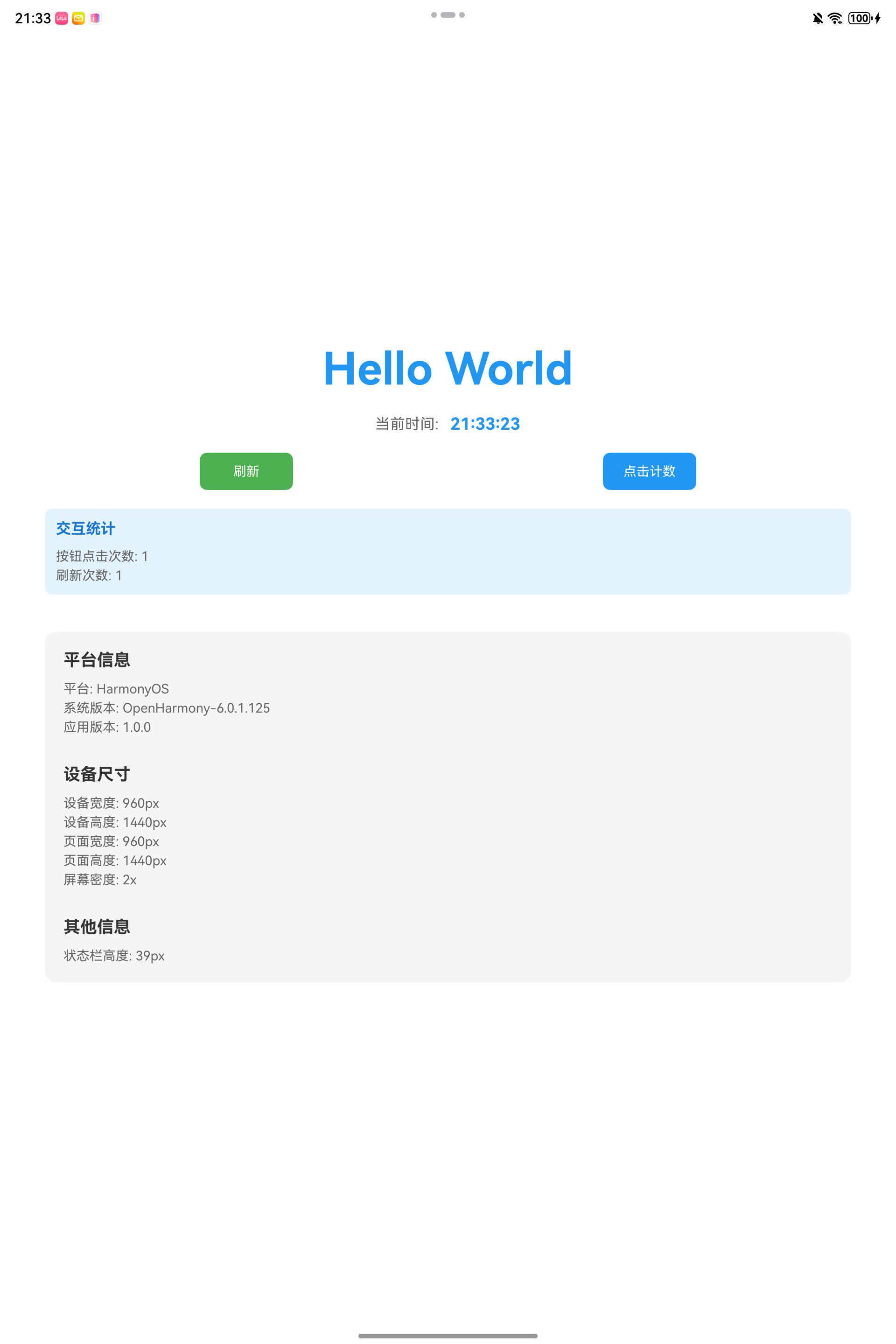
一、项目背景与目标
1.1 项目背景
在跨平台开发中,创建一个功能完善的首页是应用开发的基础。本文通过实现一个交互式首页示例,展示如何:
- 使用 Kuikly DSL 构建声明式 UI
- 实现响应式状态管理
- 处理定时器和生命周期
- 获取和显示设备信息
- 实现用户交互功能
- 确保跨平台兼容性(特别是 HarmonyOS)
1.2 功能目标
本次实现的首页包含以下功能:
- Hello World 展示:显示应用标题
- 实时时间显示:每秒更新的时钟
- 设备信息检测:显示平台、系统版本、屏幕尺寸等信息
- 交互功能:点击计数和刷新功能
- 交互统计:动态显示用户操作统计
- 跨平台支持:完美支持 HarmonyOS、Android、iOS 等平台
二、技术架构
2.1 Kuikly 框架核心概念
在开始实现之前,我们需要了解 Kuikly 框架的几个核心概念:
Pager(页面)
Pager 是 Kuikly 中的页面入口类,类似于 Android 的 Activity 或 iOS 的 ViewController。每个页面都需要:
- 使用
@Page注解注册 - 继承
BasePager或实现Pager接口 - 实现
body()方法返回 UI 结构
ViewBuilder(视图构建器)
ViewBuilder 是一个闭包(lambda),用于描述 UI 结构。Kuikly 使用声明式 DSL 来构建 UI,类似于 React 或 Flutter。
Observable(响应式状态)
Kuikly 提供了 observable 属性委托,用于创建响应式状态。当状态改变时,配合 syncFlushUI() 可以刷新 UI。
指令系统
vif:条件渲染指令,根据条件显示/隐藏组件vbind:绑定指令,用于响应式更新vfor:列表渲染指令
2.2 项目结构
demo/src/commonMain/kotlin/com/tencent/kuikly/demo/pages/
└── HomePage.kt          # 首页实现
三、详细实现步骤
3.1 创建页面类
首先,在 demo/src/commonMain/kotlin/com/tencent/kuikly/demo/pages/ 目录下创建 HomePage.kt 文件:
package com.tencent.kuikly.demo.pages

import com.tencent.kuikly.core.annotations.Page
import com.tencent.kuikly.core.base.Color
import com.tencent.kuikly.core.base.ViewBuilder
import com.tencent.kuikly.core.datetime.DateTime
import com.tencent.kuikly.core.directives.vif
import com.tencent.kuikly.core.reactive.handler.observable
import com.tencent.kuikly.core.timer.Timer
import com.tencent.kuikly.core.utils.PlatformUtils
import com.tencent.kuikly.core.views.Text
import com.tencent.kuikly.core.views.View
import com.tencent.kuikly.core.views.compose.Button
import com.tencent.kuikly.demo.pages.base.BasePager

/**
 * 首页 - 显示 Hello World 和设备信息
 */
@Page("HomePage")
internal class HomePage : BasePager() {
    // 实现代码
}
关键点说明:
@Page("HomePage"):使用@Page注解注册页面,"HomePage"是页面名称,用于路由跳转BasePager:继承自 Kuikly 的基础页面类,提供了页面生命周期和常用功能internal:使用internal修饰符,表示该类只在模块内可见
3.2 定义响应式状态
在类中定义需要响应式更新的状态变量:
@Page("HomePage")
internal class HomePage : BasePager() {

    // 响应式状态
    private var currentTime by observable("")
    private var clickCount by observable(0)
    private var refreshCount by observable(0)
    private lateinit var timer: Timer
}
状态说明:
currentTime:当前时间字符串,用于实时显示clickCount:点击计数,记录用户点击"点击计数"按钮的次数refreshCount:刷新计数,记录用户点击"刷新"按钮的次数timer:定时器对象,用于定时更新时间
observable 使用说明:
observable 是 Kuikly 提供的属性委托,用于创建响应式状态。当状态值改变时,需要手动调用 syncFlushUI() 来刷新 UI。
3.3 实现生命周期方法
3.3.1 viewDidLoad - 页面加载完成
在 viewDidLoad() 中初始化定时器:
override fun viewDidLoad() {
    super.viewDidLoad()
    // 启动定时器,每秒更新一次时间
    updateTime()
    timer = Timer()
    timer.schedule(0, 1000) {
        updateTime()
        getPager().syncFlushUI()
    }
}
关键点:
updateTime():立即更新一次时间,避免初始显示为空Timer().schedule(0, 1000):创建定时器,延迟 0ms,每 1000ms(1秒)执行一次getPager().syncFlushUI():在定时器回调中手动刷新 UI,确保时间显示更新
3.3.2 pageWillDestroy - 页面销毁
在页面销毁时清理定时器,避免内存泄漏:
override fun pageWillDestroy() {
    super.pageWillDestroy()
    // 清理定时器
    if (::timer.isInitialized) {
        timer.cancel()
    }
}
关键点:
::timer.isInitialized:检查timer是否已初始化,避免未初始化时调用cancel()导致异常timer.cancel():取消定时器,停止定时任务
3.4 实现时间更新逻辑
private fun updateTime() {
    val now = DateTime.currentTimestamp()
    val totalSeconds = now / 1000
    // 使用 rem 代替 % 运算符(Kotlin Native 兼容)
    val hours = ((totalSeconds / 3600).rem(24) + 8).rem(24) // 简单计算,实际应使用平台API
    val minutes = (totalSeconds / 60).rem(60)
    val seconds = totalSeconds.rem(60)

    // Kotlin Native 不支持 String.format,手动格式化
    val hoursStr = if (hours < 10) "0$hours" else hours.toString()
    val minutesStr = if (minutes < 10) "0$minutes" else minutes.toString()
    val secondsStr = if (seconds < 10) "0$seconds" else seconds.toString()
    currentTime = "$hoursStr:$minutesStr:$secondsStr"
}
关键技术点:
跨平台时间获取:
- 使用
DateTime.currentTimestamp()而不是System.currentTimeMillis() DateTime是 Kuikly 提供的跨平台时间 API,兼容所有平台
- 使用
Kotlin Native 兼容性:
- 使用
rem()代替%运算符,确保在 Kotlin Native 平台上正常工作 - Kotlin Native 对某些运算符的支持可能不同,使用
rem()更安全
- 使用
时间格式化:
- Kotlin Native 不支持
String.format(),需要手动格式化 - 使用条件表达式确保时间显示为两位数(如 "09:05:03")
- Kotlin Native 不支持
时区处理:
- 代码中简单计算了 UTC+8 时区,实际项目中应使用平台 API 获取本地时区
3.5 实现 UI 构建方法
3.5.1 获取设备信息
在 body() 方法开始处获取设备信息:
override fun body(): ViewBuilder {
    val ctx = this
    val pageData = ctx.pagerData

    // 获取设备信息
    val platform = PlatformUtils.getPlatform()        // 平台名称
    val osVersion = PlatformUtils.getOSVersion()      // 系统版本
    val deviceWidth = pageData.deviceWidth            // 设备宽度
    val deviceHeight = pageData.deviceHeight          // 设备高度
    val pageViewWidth = pageData.pageViewWidth         // 页面宽度
    val pageViewHeight = pageData.pageViewHeight      // 页面高度
    val density = pageData.density                     // 屏幕密度
    val appVersion = pageData.appVersion              // 应用版本

    // 构建平台描述
    val platformDesc = when {
        PlatformUtils.isAndroid() -> "Android"
        PlatformUtils.isIOS() -> "iOS"
        PlatformUtils.isMacOS() -> "macOS"
        PlatformUtils.isOhOs() -> "HarmonyOS"
        else -> platform
    }

    return { /* UI 代码 */ }
}
设备信息说明:
PlatformUtils:Kuikly 提供的平台工具类,用于判断当前运行平台pageData:页面数据对象,包含设备尺寸、系统信息等- 支持的平台检测方法:
isAndroid():是否为 Android 平台isIOS():是否为 iOS 平台isMacOS():是否为 macOS 平台isOhOs():是否为 HarmonyOS 平台
3.5.2 构建主容器
使用 Kuikly DSL 构建页面主容器:
return {
    attr {
        backgroundColor(Color.WHITE)
        flexDirectionColumn()
        alignItemsCenter()
        justifyContentCenter()
    }

    // UI 组件
}
布局说明:
backgroundColor(Color.WHITE):设置背景色为白色flexDirectionColumn():设置布局方向为纵向(列)alignItemsCenter():设置子元素水平居中对齐justifyContentCenter():设置子元素垂直居中对齐
3.5.3 Hello World 标题
// Hello World 标题
View {
    attr {
        marginBottom(20f)
    }
    Text {
        attr {
            text("Hello World")
            fontSize(48f)
            color(Color(0xFF2196F3))
            fontWeightBold()
        }
    }
}
3.5.4 实时时间显示
// 实时时间显示
View {
    attr {
        marginBottom(20f)
        flexDirectionRow()
        alignItemsCenter()
    }
    Text {
        attr {
            text("当前时间: ")
            fontSize(16f)
            color(Color(0xFF666666))
            marginRight(8f)
        }
    }
    Text {
        attr {
            text(ctx.currentTime)
            fontSize(18f)
            color(Color(0xFF2196F3))
            fontWeightBold()
        }
    }
}
关键点:
- 使用
ctx.currentTime显示时间,这是一个 observable 属性 - 当定时器更新
currentTime并调用syncFlushUI()时,这里的文本会自动更新
3.5.5 交互按钮区域
// 交互按钮区域
View {
    attr {
        flexDirectionRow()
        marginBottom(20f)
        width(pageViewWidth * 0.9f)
        justifyContentSpaceAround()
    }

    // 刷新按钮
    Button {
        attr {
            titleAttr {
                text("刷新")
                fontSize(14f)
                color(Color.WHITE)
            }
            backgroundColor(Color(0xFF4CAF50))
            size(width = 100f, height = 40f)
            borderRadius(8f)
        }
        event {
            click {
                ctx.refreshCount++
                // 手动刷新 UI
                ctx.getPager().syncFlushUI()
            }
        }
    }

    // 点击计数按钮
    Button {
        attr {
            titleAttr {
                text("点击计数")
                fontSize(14f)
                color(Color.WHITE)
            }
            backgroundColor(Color(0xFF2196F3))
            size(width = 100f, height = 40f)
            borderRadius(8f)
        }
        event {
            click {
                ctx.clickCount++
                // 手动刷新 UI
                ctx.getPager().syncFlushUI()
            }
        }
    }
}
关键点:
按钮样式:
titleAttr:设置按钮标题文本的样式backgroundColor:设置按钮背景色size:设置按钮尺寸borderRadius:设置圆角
事件处理:
event { click { ... } }:处理点击事件- 在点击事件中更新 observable 状态
- 必须调用
syncFlushUI()来刷新 UI,否则状态变化不会反映到界面上
3.5.6 交互统计显示
使用 vif 指令实现条件渲染:
// 交互信息显示 - 使用 vif 实现条件渲染
vif({ ctx.clickCount > 0 || ctx.refreshCount > 0 }) {
    View {
        attr {
            backgroundColor(Color(0xFFE3F2FD))
            borderRadius(8f)
            padding(all = 12f)
            marginBottom(20f)
            width(pageViewWidth * 0.9f)
            flexDirectionColumn()
        }
        Text {
            attr {
                text("交互统计")
                fontSize(16f)
                color(Color(0xFF1976D2))
                fontWeightBold()
                marginBottom(8f)
            }
        }
        vif({ ctx.clickCount > 0 }) {
            Text {
                attr {
                    text("按钮点击次数: ${ctx.clickCount}")
                    fontSize(14f)
                    color(Color(0xFF666666))
                    marginTop(4f)
                }
            }
        }
        vif({ ctx.refreshCount > 0 }) {
            Text {
                attr {
                    text("刷新次数: ${ctx.refreshCount}")
                    fontSize(14f)
                    color(Color(0xFF666666))
                    marginTop(4f)
                }
            }
        }
    }
}
vif 指令说明:
vif({ condition }) { ... }:根据条件决定是否渲染内容vif会自动监听条件中的 observable 值变化- 当条件从
false变为true时,会渲染内容 - 当条件从
true变为false时,会移除内容
嵌套使用:
- 外层
vif控制整个统计卡片的显示 - 内层
vif分别控制点击次数和刷新次数的显示
3.5.7 设备信息容器
// 设备信息容器
View {
    attr {
        backgroundColor(Color(0xFFF5F5F5))
        borderRadius(12f)
        padding(all = 20f)
        margin(all = 20f)
        width(pageViewWidth * 0.9f)
        flexDirectionColumn()
    }

    // 平台信息
    View {
        attr {
            flexDirectionColumn()
            marginBottom(16f)
        }
        Text {
            attr {
                text("平台信息")
                fontSize(18f)
                color(Color(0xFF333333))
                fontWeightBold()
                marginBottom(8f)
            }
        }
        Text {
            attr {
                text("平台: $platformDesc")
                fontSize(14f)
                color(Color(0xFF666666))
                marginTop(4f)
            }
        }
        Text {
            attr {
                text("系统版本: $osVersion")
                fontSize(14f)
                color(Color(0xFF666666))
                marginTop(4f)
            }
        }
        Text {
            attr {
                text("应用版本: $appVersion")
                fontSize(14f)
                color(Color(0xFF666666))
                marginTop(4f)
            }
        }
    }

    // 设备尺寸信息
    View {
        attr {
            flexDirectionColumn()
            marginTop(16f)
            marginBottom(16f)
        }
        Text {
            attr {
                text("设备尺寸")
                fontSize(18f)
                color(Color(0xFF333333))
                fontWeightBold()
                marginBottom(8f)
            }
        }
        Text {
            attr {
                text("设备宽度: ${deviceWidth.toInt()}px")
                fontSize(14f)
                color(Color(0xFF666666))
                marginTop(4f)
            }
        }
        Text {
            attr {
                text("设备高度: ${deviceHeight.toInt()}px")
                fontSize(14f)
                color(Color(0xFF666666))
                marginTop(4f)
            }
        }
        Text {
            attr {
                text("页面宽度: ${pageViewWidth.toInt()}px")
                fontSize(14f)
                color(Color(0xFF666666))
                marginTop(4f)
            }
        }
        Text {
            attr {
                text("页面高度: ${pageViewHeight.toInt()}px")
                fontSize(14f)
                color(Color(0xFF666666))
                marginTop(4f)
            }
        }
        Text {
            attr {
                // 格式化密度值,保留两位小数(Kotlin Native 不支持 String.format)
                val rounded = (density * 100f).toInt() / 100f
                val formattedDensity = if (rounded == rounded.toInt().toFloat()) {
                    rounded.toInt().toString()
                } else {
                    rounded.toString()
                }
                text("屏幕密度: ${formattedDensity}x")
                fontSize(14f)
                color(Color(0xFF666666))
                marginTop(4f)
            }
        }
    }

    // 其他信息
    View {
        attr {
            flexDirectionColumn()
            marginTop(16f)
        }
        Text {
            attr {
                text("其他信息")
                fontSize(18f)
                color(Color(0xFF333333))
                fontWeightBold()
                marginBottom(8f)
            }
        }
        Text {
            attr {
                text("状态栏高度: ${pageData.statusBarHeight.toInt()}px")
                fontSize(14f)
                color(Color(0xFF666666))
                marginTop(4f)
            }
        }
        if (pageData.isIphoneX) {
            Text {
                attr {
                    text("设备类型: iPhone X 系列")
                    fontSize(14f)
                    color(Color(0xFF666666))
                    marginTop(4f)
                }
            }
        }
    }
}
关键点:
密度格式化:
- Kotlin Native 不支持
String.format(),需要手动格式化 - 使用整数除法和条件判断来格式化浮点数
- Kotlin Native 不支持
条件渲染:
- 使用普通的
if语句进行条件渲染(非响应式) - 适用于静态条件,不需要响应式更新
- 使用普通的
四、配置平台入口
4.1 HarmonyOS 平台配置
在 ohosApp/entry/src/main/ets/pages/Index.ets 中配置默认页面:
build() {
  Stack() {
    if (this.showKuikly) {
      Kuikly({
        pageName: this.pageName ?? 'HomePage', // 设置为 HomePage
        pageData: this.pageData ?? {},
        delegate: this.kuiklyViewDelegate,
        contextCode: this.contextCode,
        executeMode: this.contextCodeHandler.getExecuteMode(this.contextCode),
        onControllerReadyCallback: (controller) => {
          this.kuiklyController = controller;
          // ... 其他配置
        },
        nativeManager: globalNativeManager,
      });
    }
  }.expandSafeArea([SafeAreaType.KEYBOARD]);
}
4.2 Android 平台配置
在 androidApp/src/main/java/com/tencent/kuikly/android/demo/KuiklyRenderActivity.kt 中配置:
private val pageName: String
    get() {
        val pn = intent.getStringExtra(KEY_PAGE_NAME) ?: ""
        return pn.ifEmpty { "HomePage" } // 默认加载 HomePage
    }
五、关键技术点详解
5.1 响应式状态管理
Kuikly 使用 observable 属性委托来实现响应式状态管理:
private var clickCount by observable(0)工作原理:
observable创建一个可观察的属性- 当属性值改变时,不会自动更新 UI
- 需要手动调用
syncFlushUI()来刷新 UI
为什么需要手动刷新?
- 性能考虑:避免频繁的 UI 更新
- 控制更新时机:可以在合适的时机批量更新
- 跨平台兼容:不同平台的 UI 更新机制不同
5.2 定时器使用
Kuikly 提供了跨平台的 Timer 类:
timer = Timer()
timer.schedule(0, 1000) {
    updateTime()
    getPager().syncFlushUI()
}
关键点:
schedule(delay, period, action):延迟delayms 后,每periodms 执行一次action- 必须在页面销毁时调用
cancel()清理定时器 - 在定时器回调中调用
syncFlushUI()确保 UI 更新
5.3 条件渲染指令
vif 指令
vif({ ctx.clickCount > 0 }) {
    Text { /* ... */ }
}
特点:
- 自动监听条件中的 observable 值
- 条件变化时自动添加/移除组件
- 性能优化:只渲染满足条件的组件
与普通 if 的区别
// 普通 if - 静态条件,不会响应式更新
if (pageData.isIphoneX) {
    Text { /* ... */ }
}

// vif - 响应式条件,会监听 observable 变化
vif({ ctx.clickCount > 0 }) {
    Text { /* ... */ }
}
5.4 跨平台兼容性处理
5.4.1 时间 API
// ❌ 不推荐:可能在某些平台不支持
val now = System.currentTimeMillis()

// ✅ 推荐:跨平台 API
val now = DateTime.currentTimestamp()
5.4.2 取模运算符
// ❌ 可能在某些平台有问题
val hours = (totalSeconds / 3600) % 24

// ✅ 推荐:使用 rem()
val hours = (totalSeconds / 3600).rem(24)
5.4.3 字符串格式化
// ❌ Kotlin Native 不支持
val formatted = String.format("%.2f", density)

// ✅ 手动格式化
val rounded = (density * 100f).toInt() / 100f
val formatted = if (rounded == rounded.toInt().toFloat()) {
    rounded.toInt().toString()
} else {
    rounded.toString()
}
六、常见问题与解决方案
6.1 点击按钮没有反应
问题现象: 点击按钮后,计数没有增加,UI 没有更新。
原因分析: 更新 observable 状态后,没有调用 syncFlushUI()。
解决方案:
event {
    click {
        ctx.clickCount++
        ctx.getPager().syncFlushUI() // 必须调用
    }
}
6.2 定时器导致内存泄漏
问题现象: 页面销毁后,定时器仍在运行。
原因分析: 没有在页面销毁时清理定时器。
解决方案:
override fun pageWillDestroy() {
    super.pageWillDestroy()
    if (::timer.isInitialized) {
        timer.cancel() // 清理定时器
    }
}
6.3 Kotlin Native 编译错误
问题现象: 使用 String.format() 或 % 运算符导致编译错误。
原因分析: Kotlin Native 不支持某些 Java API。
解决方案: 使用跨平台兼容的 API,如 rem() 代替 %,手动格式化代替 String.format()。
6.4 vbind 语法错误
问题现象: 使用 vbind 时出现类型不匹配错误。
原因分析: vbind 的闭包不接受参数。
错误用法:
// ❌ 错误
vbind({ ctx.clickCount }) { count ->
    // ...
}
正确用法:
// ✅ 正确方式1:使用 vif
vif({ ctx.clickCount > 0 }) {
    Text {
        attr {
            text("点击次数: ${ctx.clickCount}")
        }
    }
}

// ✅ 正确方式2:vbind 不带参数
vbind({ ctx.clickCount }) {
    Text {
        attr {
            text("点击次数: ${ctx.clickCount}")
        }
    }
}
七、完整代码
完整的 HomePage.kt 代码如下:
/*
* Tencent is pleased to support the open source community by making KuiklyUI
* available.
* Copyright (C) 2025 Tencent. All rights reserved.
* Licensed under the License of KuiklyUI;
* you may not use this file except in compliance with the License.
* You may obtain a copy of the License at
* https://github.com/Tencent-TDS/KuiklyUI/blob/main/LICENSE
* Unless required by applicable law or agreed to in writing, software
* distributed under the License is distributed on an "AS IS" BASIS,
* WITHOUT WARRANTIES OR CONDITIONS OF ANY KIND, either express or implied.
* See the License for the specific language governing permissions and
* limitations under the License.
*/
package com.tencent.kuikly.demo.pages
import com.tencent.kuikly.core.annotations.Page
import com.tencent.kuikly.core.base.Color
import com.tencent.kuikly.core.base.ViewBuilder
import com.tencent.kuikly.core.datetime.DateTime
import com.tencent.kuikly.core.directives.vif
import com.tencent.kuikly.core.reactive.handler.observable
import com.tencent.kuikly.core.timer.Timer
import com.tencent.kuikly.core.utils.PlatformUtils
import com.tencent.kuikly.core.views.Text
import com.tencent.kuikly.core.views.View
import com.tencent.kuikly.core.views.compose.Button
import com.tencent.kuikly.demo.pages.base.BasePager
/**
* 首页 - 显示 Hello World 和设备信息
*/
@Page("HomePage")
internal class HomePage : BasePager() {
// 响应式状态
private var currentTime by observable("")
private var clickCount by observable(0)
private var refreshCount by observable(0)
private lateinit var timer: Timer
override fun viewDidLoad() {
super.viewDidLoad()
// 启动定时器,每秒更新一次时间
updateTime()
timer = Timer()
timer.schedule(0, 1000) {
updateTime()
getPager().syncFlushUI()
}
}
override fun pageWillDestroy() {
super.pageWillDestroy()
// 清理定时器
if (::timer.isInitialized) {
timer.cancel()
}
}
private fun updateTime() {
val now = DateTime.currentTimestamp()
val totalSeconds = now / 1000
// 使用 rem 代替 % 运算符(Kotlin Native 兼容)
val hours = ((totalSeconds / 3600).rem(24) + 8).rem(24) // 简单计算,实际应使用平台API
val minutes = (totalSeconds / 60).rem(60)
val seconds = totalSeconds.rem(60)
// Kotlin Native 不支持 String.format,手动格式化
val hoursStr = if (hours < 10) "0$hours" else hours.toString()
val minutesStr = if (minutes < 10) "0$minutes" else minutes.toString()
val secondsStr = if (seconds < 10) "0$seconds" else seconds.toString()
currentTime = "$hoursStr:$minutesStr:$secondsStr"
}
override fun body(): ViewBuilder {
val ctx = this
val pageData = ctx.pagerData
// 获取设备信息
val platform = PlatformUtils.getPlatform()
val osVersion = PlatformUtils.getOSVersion()
val deviceWidth = pageData.deviceWidth
val deviceHeight = pageData.deviceHeight
val pageViewWidth = pageData.pageViewWidth
val pageViewHeight = pageData.pageViewHeight
val density = pageData.density
val appVersion = pageData.appVersion
// 构建平台描述
val platformDesc = when {
PlatformUtils.isAndroid() -> "Android"
PlatformUtils.isIOS() -> "iOS"
PlatformUtils.isMacOS() -> "macOS"
PlatformUtils.isOhOs() -> "HarmonyOS"
else -> platform
}
return {
attr {
backgroundColor(Color.WHITE)
flexDirectionColumn()
alignItemsCenter()
justifyContentCenter()
}
// Hello World 标题
View {
attr {
marginBottom(20f)
}
Text {
attr {
text("Hello World")
fontSize(48f)
color(Color(0xFF2196F3))
fontWeightBold()
}
}
}
// 实时时间显示
View {
attr {
marginBottom(20f)
flexDirectionRow()
alignItemsCenter()
}
Text {
attr {
text("当前时间: ")
fontSize(16f)
color(Color(0xFF666666))
marginRight(8f)
}
}
Text {
attr {
text(ctx.currentTime)
fontSize(18f)
color(Color(0xFF2196F3))
fontWeightBold()
}
}
}
// 交互按钮区域
View {
attr {
flexDirectionRow()
marginBottom(20f)
width(pageViewWidth * 0.9f)
justifyContentSpaceAround()
}
// 刷新按钮
Button {
attr {
titleAttr {
text("刷新")
fontSize(14f)
color(Color.WHITE)
}
backgroundColor(Color(0xFF4CAF50))
size(width = 100f, height = 40f)
borderRadius(8f)
}
event {
click {
ctx.refreshCount++
// 手动刷新 UI
ctx.getPager().syncFlushUI()
}
}
}
// 点击计数按钮
Button {
attr {
titleAttr {
text("点击计数")
fontSize(14f)
color(Color.WHITE)
}
backgroundColor(Color(0xFF2196F3))
size(width = 100f, height = 40f)
borderRadius(8f)
}
event {
click {
ctx.clickCount++
// 手动刷新 UI
ctx.getPager().syncFlushUI()
}
}
}
}
// 交互信息显示 - 使用 vif 实现条件渲染
vif({ ctx.clickCount > 0 || ctx.refreshCount > 0 }) {
View {
attr {
backgroundColor(Color(0xFFE3F2FD))
borderRadius(8f)
padding(all = 12f)
marginBottom(20f)
width(pageViewWidth * 0.9f)
flexDirectionColumn()
}
Text {
attr {
text("交互统计")
fontSize(16f)
color(Color(0xFF1976D2))
fontWeightBold()
marginBottom(8f)
}
}
vif({ ctx.clickCount > 0 }) {
Text {
attr {
text("按钮点击次数: ${ctx.clickCount}")
fontSize(14f)
color(Color(0xFF666666))
marginTop(4f)
}
}
}
vif({ ctx.refreshCount > 0 }) {
Text {
attr {
text("刷新次数: ${ctx.refreshCount}")
fontSize(14f)
color(Color(0xFF666666))
marginTop(4f)
}
}
}
}
}
// 设备信息容器
View {
attr {
backgroundColor(Color(0xFFF5F5F5))
borderRadius(12f)
padding(all = 20f)
margin(all = 20f)
width(pageViewWidth * 0.9f)
flexDirectionColumn()
}
// 平台信息
View {
attr {
flexDirectionColumn()
marginBottom(16f)
}
Text {
attr {
text("平台信息")
fontSize(18f)
color(Color(0xFF333333))
fontWeightBold()
marginBottom(8f)
}
}
Text {
attr {
text("平台: $platformDesc")
fontSize(14f)
color(Color(0xFF666666))
marginTop(4f)
}
}
Text {
attr {
text("系统版本: $osVersion")
fontSize(14f)
color(Color(0xFF666666))
marginTop(4f)
}
}
Text {
attr {
text("应用版本: $appVersion")
fontSize(14f)
color(Color(0xFF666666))
marginTop(4f)
}
}
}
// 设备尺寸信息
View {
attr {
flexDirectionColumn()
marginTop(16f)
marginBottom(16f)
}
Text {
attr {
text("设备尺寸")
fontSize(18f)
color(Color(0xFF333333))
fontWeightBold()
marginBottom(8f)
}
}
Text {
attr {
text("设备宽度: ${deviceWidth.toInt()}px")
fontSize(14f)
color(Color(0xFF666666))
marginTop(4f)
}
}
Text {
attr {
text("设备高度: ${deviceHeight.toInt()}px")
fontSize(14f)
color(Color(0xFF666666))
marginTop(4f)
}
}
Text {
attr {
text("页面宽度: ${pageViewWidth.toInt()}px")
fontSize(14f)
color(Color(0xFF666666))
marginTop(4f)
}
}
Text {
attr {
text("页面高度: ${pageViewHeight.toInt()}px")
fontSize(14f)
color(Color(0xFF666666))
marginTop(4f)
}
}
Text {
attr {
// 格式化密度值,保留两位小数(Kotlin Native 不支持 String.format)
val rounded = (density * 100f).toInt() / 100f
val formattedDensity = if (rounded == rounded.toInt().toFloat()) {
rounded.toInt().toString()
} else {
rounded.toString()
}
text("屏幕密度: ${formattedDensity}x")
fontSize(14f)
color(Color(0xFF666666))
marginTop(4f)
}
}
}
// 其他信息
View {
attr {
flexDirectionColumn()
marginTop(16f)
}
Text {
attr {
text("其他信息")
fontSize(18f)
color(Color(0xFF333333))
fontWeightBold()
marginBottom(8f)
}
}
Text {
attr {
text("状态栏高度: ${pageData.statusBarHeight.toInt()}px")
fontSize(14f)
color(Color(0xFF666666))
marginTop(4f)
}
}
if (pageData.isIphoneX) {
Text {
attr {
text("设备类型: iPhone X 系列")
fontSize(14f)
color(Color(0xFF666666))
marginTop(4f)
}
}
}
}
}
}
}
}八、测试与验证
8.1 编译项目
在项目根目录执行构建脚本:
# HarmonyOS 平台
./2.0_ohos_demo_build.sh

# Android 平台
./gradlew :androidApp:assembleDebug
8.2 功能验证清单
- Hello World 标题正常显示
- 实时时间每秒更新
- 点击"刷新"按钮,刷新计数增加
- 点击"点击计数"按钮,点击计数增加
- 交互统计卡片在首次交互后显示
- 设备信息正确显示(平台、版本、尺寸等)
- 在 HarmonyOS 设备上正常运行
- 在 Android 设备上正常运行
- 页面销毁时定时器正确清理
九、总结
本文详细介绍了如何在腾讯 Kuikly 跨平台框架中实现一个功能丰富的交互式首页,并确保在 HarmonyOS 平台上的完美运行。主要技术点包括:
9.1 核心技术要点
- 响应式状态管理:使用
observable属性委托创建响应式状态 - 定时器处理:使用跨平台
TimerAPI,注意生命周期管理 - 条件渲染:使用
vif指令实现响应式条件渲染 - 跨平台兼容:使用 Kuikly 提供的跨平台 API,避免平台特定代码
- UI 刷新机制:理解并正确使用
syncFlushUI()方法
9.2 最佳实践
- 使用跨平台 API:优先使用 Kuikly 提供的跨平台 API,如
DateTime.currentTimestamp() - 避免平台特定代码:避免使用
System.currentTimeMillis()、String.format()等 - 生命周期管理:及时清理资源,避免内存泄漏
- 手动刷新 UI:更新 observable 状态后,记得调用
syncFlushUI() - 条件渲染选择:静态条件用
if,响应式条件用vif